Accessing the Interview: Upon receiving the assessment interview link, the candidate clicks on it and logs in to the platform using their email ID.
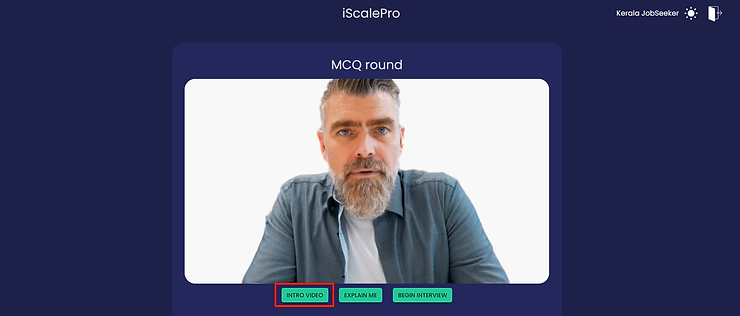
Welcome Screen: After logging in, the candidate is presented with three options:
a. Introduction Video: A company-created video providing insights into the company and interview expectations.

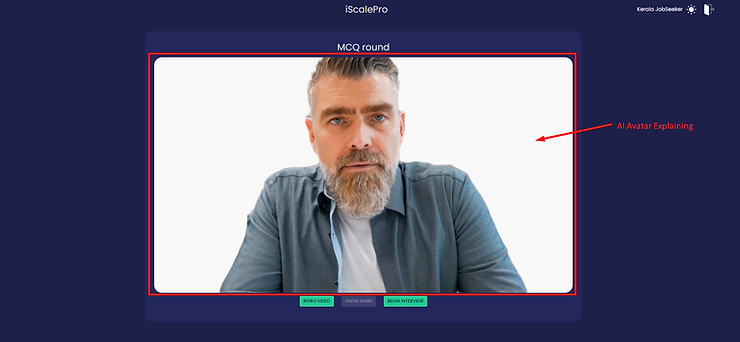
b. Explain Me Button: An AI avatar explains the assessment rules to the candidate.

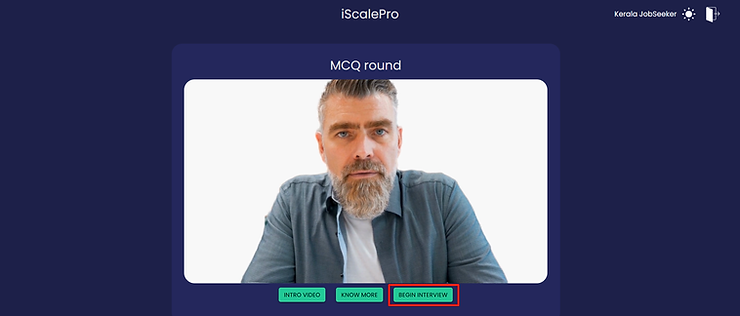
c. Begin the Interview: Starts the selected assessment interview.
Interview Types: iScalePro offers various interview formats, each with a distinct interface:
a. MCQ Assessment Interview:
i. Countdown timer at the top center.
ii. Questions and MCQ options on the left.
iii. “Next Question” button for navigation.
iv. Option to reorder questions on the right.

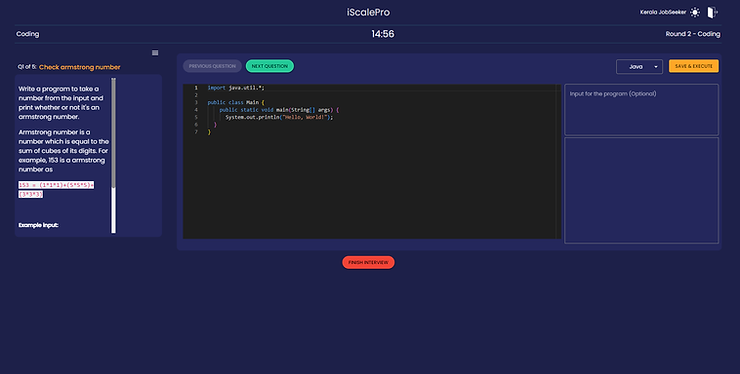
b. Coding Assessment Interview:
i. Countdown timer at the top center.
ii. Coding questions on the left.
iii. Coding area in the center for inputting answers.
c. Q&A Assessment Interview:
i. Countdown timer at the top center.
ii. Q&A questions and input area on the left.
iii. “Next Question” button for navigation.
iv. Option to reorder questions on the right.

d. Video Assessment Interview:
i. Countdown timer at the top center.
ii. AI avatar asks questions.
iii. “Next Question” or “Skip Question” buttons for navigation.

Finishing the Interview: After completing all questions, the candidate clicks on the “Finish Interview” button.
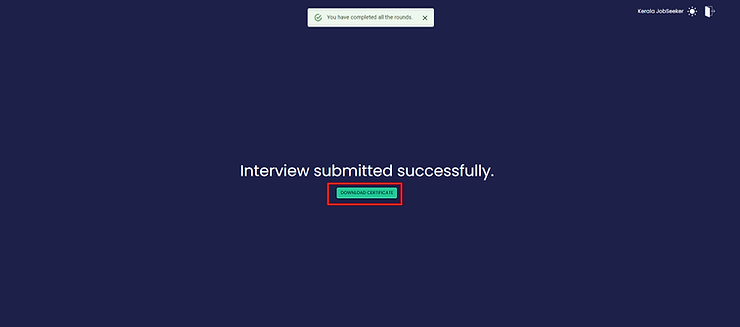
The candidate is redirected to a screen where they can download their interview completion certificate.