Access the Reviewer View:
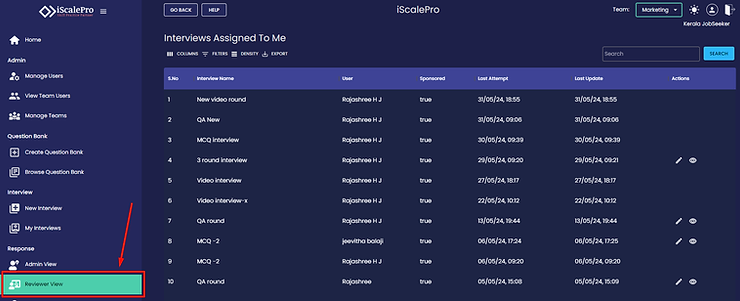
- Go to the side menu in iScalePro.
- Click on the “Reviewer view” option.
Explore the Reviewer Dashboard:
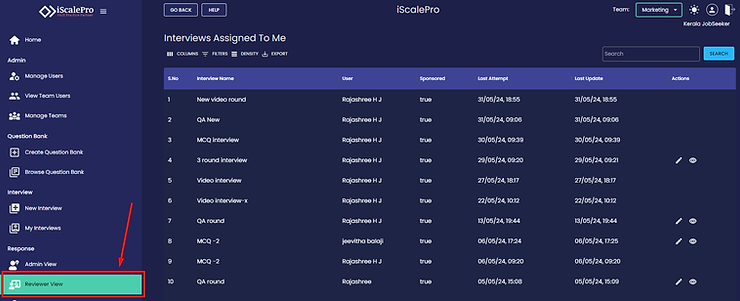
- You’ll see a dashboard displaying all interviews assigned to you for review.
- The dashboard is organised and includes details like:
- Interview name
- Interviewers
- Sponsored status
- Last attempt date
- Date of last update
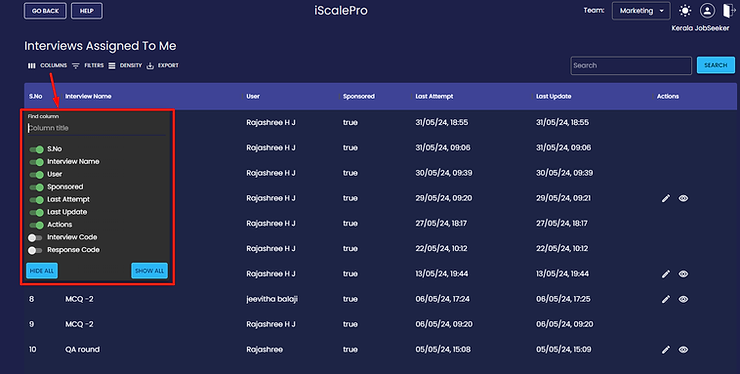
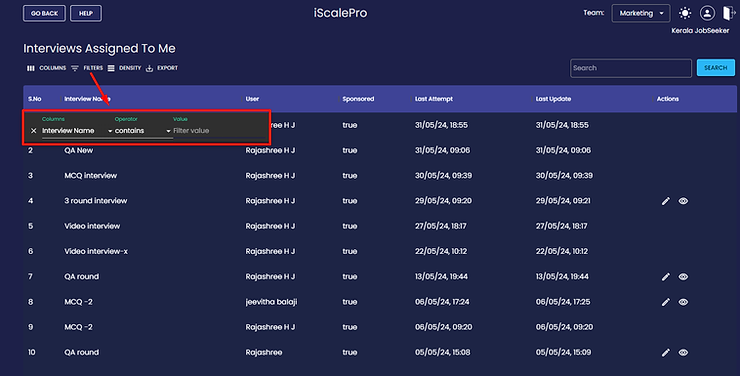
- Customise the view:
- Change the column order to suit your needs.
- Filter interviews based on specific criteria (column, operator, value).
Review Interviews:
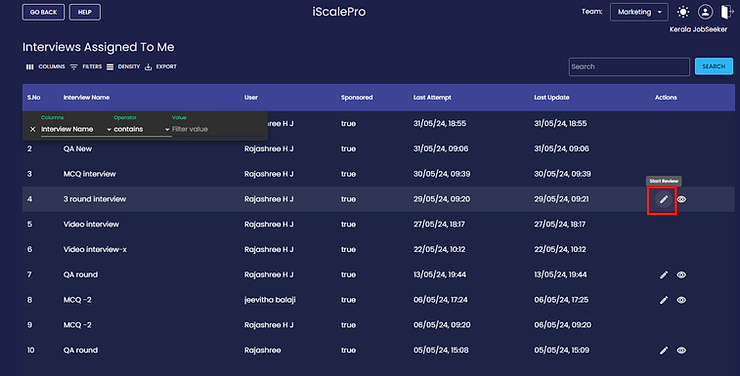
To start reviewing an interview:
- Locate the interview in the dashboard.
- Click the pencil icon in the “Action” column.
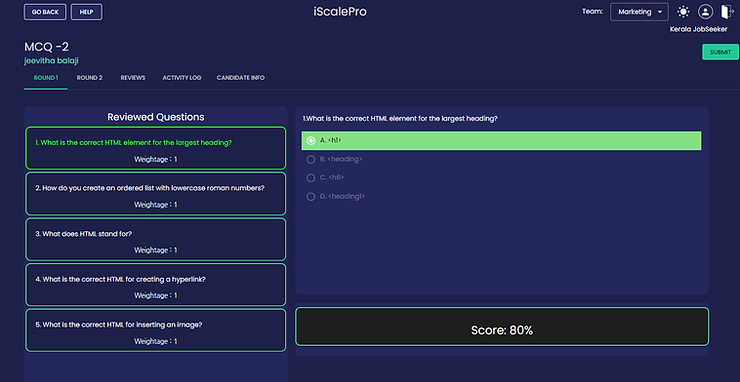
Within the review interface, you can:
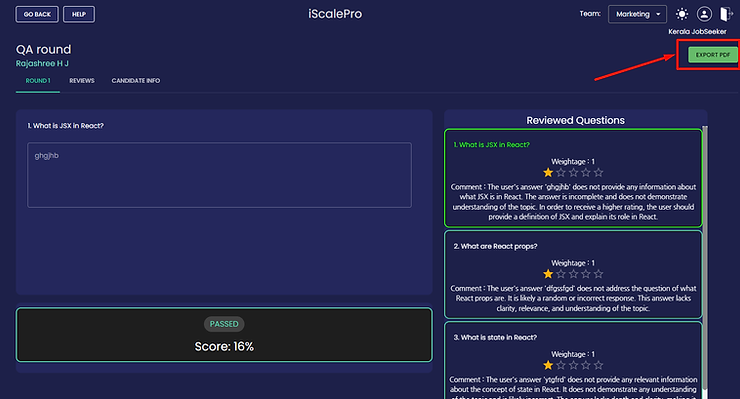
- Review candidate answers round by round.
- Check for existing reviews from other reviewers.
- Access the activity log for the interview.
- View the candidate’s information.
View and Export Responses:
To view a candidate’s responses:
- Find the interview in the dashboard.
- Click on the interview name or a designated “View response” option.
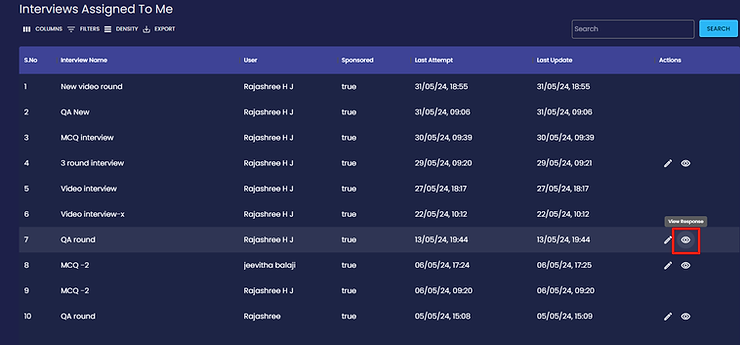
You’ll see the responses for each round, along with the candidate’s info.


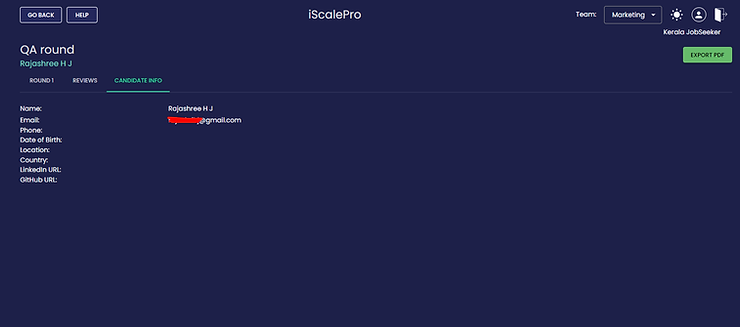
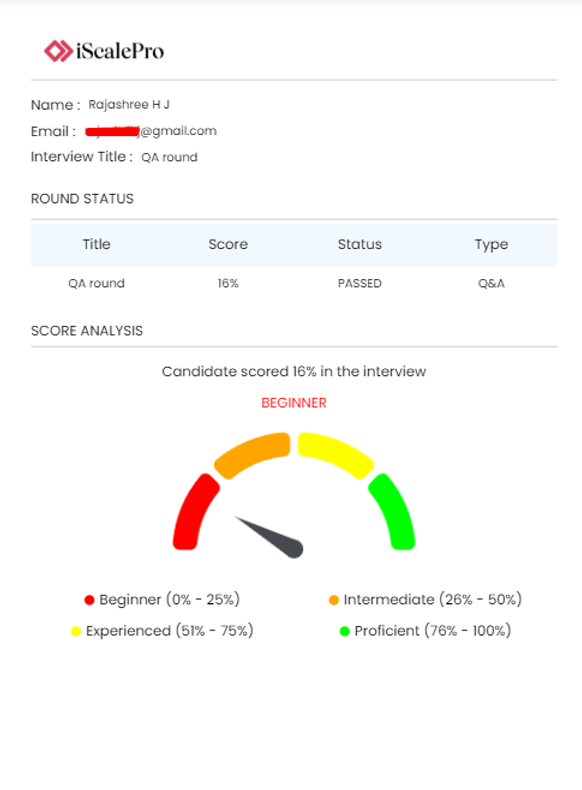
Export the candidate’s details to a PDF:
- Look for an “Export” or “Download” button.
- The PDF will include:
- Candidate information
- Round status
- Score analysis
- Questions and answers for each round.